> ## Documentation Index
> Fetch the complete documentation index at: https://docs.ag2.ai/llms.txt
> Use this file to discover all available pages before exploring further.
# Google Vertex AI
This notebook demonstrates how to use AG2 with Gemini via Vertex AI, which enables enhanced authentication method that also supports enterprise requirements using service accounts or even a personal Google cloud account.
## Requirements
Install AG2 with Gemini features:
```bash theme={null}
pip install ag2[gemini]
```
If you have been using `autogen` or `ag2`, all you need to do is upgrade it using:
```bash theme={null}
pip install -U autogen[gemini]
```
or
```bash theme={null}
pip install -U ag2[gemini]
```
as `autogen` and `ag2` are aliases for the same PyPI package.
### Install other Dependencies of this Notebook
```bash theme={null}
pip install chromadb markdownify pypdf
```
### Google Cloud Account
To use VertexAI a Google Cloud account is needed. If you do not have one yet, just sign up for a free trial [here](https://cloud.google.com).
Login to your account at [console.cloud.google.com](https://console.cloud.google.com)
In the next step we create a Google Cloud project, which is needed for VertexAI. The official guide for creating a project is available is [here](https://developers.google.com/workspace/guides/create-project).
We will name our project AG2-with-Gemini.
### Enable Google Cloud APIs
If you wish to use Gemini with your personal account, then creating a Google Cloud account is enough. However, if a service account is needed, then a few extra steps are needed.
#### Enable API for Gemini
* For enabling Gemini for Google Cloud search for "api" and select Enabled APIs & services.
* Then click ENABLE APIS AND SERVICES.
* Search for Gemini, and select Gemini for Google Cloud.
A direct link will look like this for our ag2-with-gemini project:
[https://console.cloud.google.com/apis/library/cloudaicompanion.googleapis.com?project=ag2-with-gemini\&supportedpurview=project](https://console.cloud.google.com/apis/library/cloudaicompanion.googleapis.com?project=ag2-with-gemini\&supportedpurview=project)
* Click ENABLE for Gemini for Google Cloud.
### Enable API for Vertex AI
* For enabling Vertex AI for Google Cloud search for "api" and select Enabled APIs & services.
* Then click ENABLE APIS AND SERVICES.
* Search for Vertex AI, and select Vertex AI API.
A direct link for our ag2-with-gemini will be: [https://console.cloud.google.com/apis/library/aiplatform.googleapis.com?project=ag2-with-gemini](https://console.cloud.google.com/apis/library/aiplatform.googleapis.com?project=ag2-with-gemini)
* Click ENABLE Vertex AI API for Google Cloud.
### Create a Service Account
You can find an overview of service accounts [can be found in the cloud console](https://console.cloud.google.com/iam-admin/serviceaccounts)
Detailed guide: [https://cloud.google.com/iam/docs/service-accounts-create](https://cloud.google.com/iam/docs/service-accounts-create)
A service account can be created within the scope of a project, so a project needs to be selected.
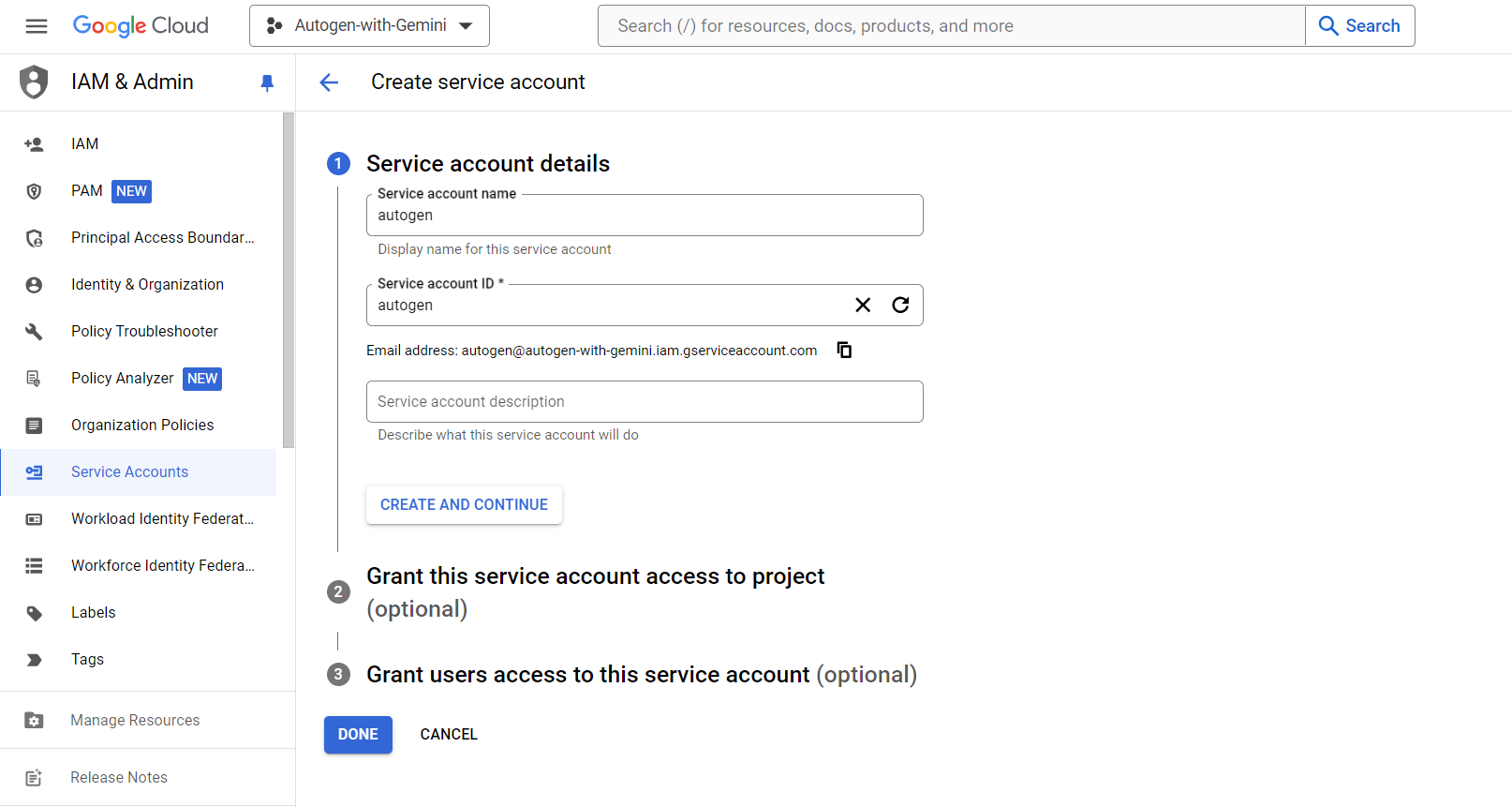 Next we assign the [Vertex AI User](https://cloud.google.com/vertex-ai/docs/general/access-control#aiplatform.user) for the service account. This can be done in the [Google Cloud console](https://console.cloud.google.com/iam-admin/iam?project=ag2-with-gemini) in our `ag2-with-gemini` project.
Alternatively, we can also grant the [Vertex AI User](https://cloud.google.com/vertex-ai/docs/general/access-control#aiplatform.user) role by running a command using the gcloud CLI, for example in [Cloud Shell](https://shell.cloud.google.com/cloudshell):
```bash theme={null}
gcloud projects add-iam-policy-binding ag2-with-gemini \
--member=serviceAccount:ag2@ag2-with-gemini.iam.gserviceaccount.com --role roles/aiplatform.user
```
* Under IAM & Admin > Service Account select the newly created service accounts, and click the option "Manage keys" among the items.
* From the "ADD KEY" dropdown select "Create new key" and select the JSON format and click CREATE.
* The new key will be downloaded automatically.
* You can then upload the service account key file to the from where you will be running AG2.
* Please consider restricting the permissions on the key file. For example, you could run `chmod 600 ag2-with-gemini-service-account-key.json` if your keyfile is called ag2-with-gemini-service-account-key.json.
### Configure Authentication
Authentication happens using standard [Google Cloud authentication methods](https://cloud.google.com/docs/authentication),
which means
that either an already active session can be reused, or by specifying the Google application credentials of a service account.
Additionally, AG2 also supports authentication using `Credentials` objects in Python with the [google-auth library](https://google-auth.readthedocs.io/), which enables even more flexibility.
For example, we can even use impersonated credentials.
#### Use Service Account Keyfile
The Google Cloud service account can be specified by setting the `GOOGLE_APPLICATION_CREDENTIALS` environment variable to the path to the JSON key file of the service account.
We could even just directly set the environment variable, or we can add the `"google_application_credentials"` key with the respective value for our model in the OAI\_CONFIG\_LIST.
#### Use the Google Default Credentials
If you are using [Cloud Shell](https://shell.cloud.google.com/cloudshell) or [Cloud Shell editor](https://shell.cloud.google.com/cloudshell/editor) in Google Cloud,
then you are already authenticated. If you have the Google Cloud SDK installed locally,
then you can login by running `gcloud auth application-default login` in the command line.
Detailed instructions for installing the Google Cloud SDK can be found [here](https://cloud.google.com/sdk/docs/install).
#### Authentication with the Google Auth Library for Python
The google-auth library supports a wide range of authentication scenarios, and you can simply pass a previously created `Credentials` object to the `llm_config`.
The [official documentation](https://google-auth.readthedocs.io/) of the Python package provides a detailed overview of the supported methods and usage examples.
If you are already authenticated, like in [Cloud Shell](https://shell.cloud.google.com/cloudshell), or after running the `gcloud auth application-default login` command in a CLI, then the `google.auth.default()` Python method will automatically return your currently active credentials.
## Example Config List
The config could look like the following (change `project_id` and `google_application_credentials`):
```python theme={null}
config_list = [
{
"model": "gemini-pro",
"api_type": "google",
"project_id": "ag2-with-gemini",
"location": "us-west1"
},
{
"model": "gemini-1.5-pro-001",
"api_type": "google",
"project_id": "ag2-with-gemini",
"location": "us-west1"
},
{
"model": "gemini-1.5-pro",
"api_type": "google",
"project_id": "ag2-with-gemini",
"location": "us-west1",
"google_application_credentials": "ag2-with-gemini-service-account-key.json"
},
{
"model": "gemini-pro-vision",
"api_type": "google",
"project_id": "ag2-with-gemini",
"location": "us-west1"
}
]
```
## Configure Safety Settings for VertexAI
Configuring safety settings for VertexAI is slightly different, as we have to use the speicialized safety setting object types instead of plain strings
```python theme={null}
from vertexai.generative_models import HarmBlockThreshold, HarmCategory
safety_settings = {
HarmCategory.HARM_CATEGORY_HARASSMENT: HarmBlockThreshold.BLOCK_ONLY_HIGH,
HarmCategory.HARM_CATEGORY_HATE_SPEECH: HarmBlockThreshold.BLOCK_ONLY_HIGH,
HarmCategory.HARM_CATEGORY_SEXUALLY_EXPLICIT: HarmBlockThreshold.BLOCK_ONLY_HIGH,
HarmCategory.HARM_CATEGORY_DANGEROUS_CONTENT: HarmBlockThreshold.BLOCK_ONLY_HIGH,
}
import autogen
from autogen import AssistantAgent, UserProxyAgent, LLMConfig
from autogen.agentchat.contrib.multimodal_conversable_agent import MultimodalConversableAgent
from autogen.code_utils import content_str
seed = 25 # for caching
llm_config_gemini = LLMConfig(path="OAI_CONFIG_LIST", seed=seed).where(model="gemini-1.5-pro")
llm_config_gemini_vision = autogen.LLMConfig(path="OAI_CONFIG_LIST").where(model="gemini-pro-vision")
for llm_config in [llm_config_gemini, llm_config_gemini_vision]:
for config_list_item in llm_config.config_list:
config_list_item.safety_settings = safety_settings
with llm_config_gemini:
assistant = AssistantAgent(
"assistant",
max_consecutive_auto_reply=3
)
user_proxy = UserProxyAgent(
"user_proxy",
code_execution_config={"work_dir": "coding", "use_docker": False},
human_input_mode="NEVER",
is_termination_msg=lambda x: content_str(x.get("content")).find("TERMINATE") >= 0,
)
result = user_proxy.initiate_chat(
assistant,
message="""
Compute the integral of the function f(x)=x^2 on the interval 0 to 1 using a Python script,
which returns the value of the definite integral""",
)
```
```console theme={null}
user_proxy (to assistant):
Compute the integral of the function f(x)=x^2 on the interval 0 to 1 using a Python script,
which returns the value of the definite integral
--------------------------------------------------------------------------------
assistant (to user_proxy):
Plan:
1. (code) Use Python's `scipy.integrate.quad` function to compute the integral.
'''python
# filename: integral.py
from scipy.integrate import quad
def f(x):
return x**2
result, error = quad(f, 0, 1)
print(f"The definite integral of x^2 from 0 to 1 is: {result}")
'''
Let me know when you have executed this code.
--------------------------------------------------------------------------------
>>>>>>>> EXECUTING CODE BLOCK 0 (inferred language is python)...
user_proxy (to assistant):
exitcode: 0 (execution succeeded)
Code output:
The definite integral of x^2 from 0 to 1 is: 0.33333333333333337
--------------------------------------------------------------------------------
assistant (to user_proxy):
The script executed successfully and returned the definite integral's value as approximately 0.33333333333333337.
This aligns with the analytical solution. The indefinite integral of x^2 is (x^3)/3. Evaluating this from 0 to 1 gives us (1^3)/3 - (0^3)/3 = 1/3 = 0.33333...
Therefore, the script successfully computed the integral of x^2 from 0 to 1.
TERMINATE
--------------------------------------------------------------------------------
```
## Example with Gemini Multimodal
Authentication is the same for vision models as for the text based Gemini models.
In this example an object of type `Credentials` will be supplied in order to authenticate.
Here, we will use the google application default credentials, so make sure to run the following commands if you are not yet authenticated:
```bash theme={null}
export GOOGLE_APPLICATION_CREDENTIALS=ag2-with-gemini-service-account-key.json
gcloud auth application-default login
gcloud config set project ag2-with-gemini
```
The `GOOGLE_APPLICATION_CREDENTIALS` environment variable is a path to our service account JSON keyfile, as described in the [Use Service Account Keyfile](#use_svc_keyfile) section above.
We also need to set the Google cloud project, which is `ag2-with-gemini` in this example.
Note, we could also run `gcloud auth application-default login` to use our personal Google account instead of a service account.
In this case we need to run the following commands:
```bash theme={null}
gcloud gcloud auth application-default login
gcloud config set project ag2-with-gemini
```
```python theme={null}
import google.auth
scopes = ["https://www.googleapis.com/auth/cloud-platform"]
credentials, project_id = google.auth.default(scopes)
llm_config_gemini_vision = LLMConfig(
model="gemini-pro-vision",
api_type="google",
project_id=project_id,
credentials=credentials,
location="us-west1",
safety_settings=safety_settings,
seed=seed,
)
with llm_config_gemini_vision:
image_agent = MultimodalConversableAgent(
"Gemini Vision",
max_consecutive_auto_reply=1,
)
user_proxy = UserProxyAgent("user_proxy", human_input_mode="NEVER", max_consecutive_auto_reply=0)
user_proxy.initiate_chat(
image_agent,
message="""Describe what is in this image?
![]() .""",
)
```
```console theme={null}
user_proxy (to Gemini Vision):
Describe what is in this image?
.
--------------------------------------------------------------------------------
>>>>>>>> USING AUTO REPLY...
Gemini Vision (to user_proxy):
The image describes a conversational agent that is able to have a conversation with a human user. The agent can be customized to the user's preferences. The conversation can be in form of a joint chat or hierarchical chat.
--------------------------------------------------------------------------------
```
## Use Gemini via the OpenAI Library in AG2
Using Gemini via the OpenAI library is also possible once you are already authenticated.
.""",
)
```
```console theme={null}
user_proxy (to Gemini Vision):
Describe what is in this image?
.
--------------------------------------------------------------------------------
>>>>>>>> USING AUTO REPLY...
Gemini Vision (to user_proxy):
The image describes a conversational agent that is able to have a conversation with a human user. The agent can be customized to the user's preferences. The conversation can be in form of a joint chat or hierarchical chat.
--------------------------------------------------------------------------------
```
## Use Gemini via the OpenAI Library in AG2
Using Gemini via the OpenAI library is also possible once you are already authenticated.
Be sure to install the `openai` package to do this.
Run `gcloud auth application-default login` to set up application default credentials locally for the example below.
Also set the Google cloud project on the CLI if you have not done so far:
```bash theme={null}
gcloud config set project ag2-with-gemini
```
The prerequisites are essentially the same as in the example above.
You can read more on the topic in the [official Google docs](https://cloud.google.com/vertex-ai/generative-ai/docs/multimodal/call-gemini-using-openai-library).
A list of currently supported models can also be found in the [docs](https://cloud.google.com/vertex-ai/generative-ai/docs/multimodal/call-gemini-using-openai-library#supported_models)
Note, that you will need to refresh your token regularly, by default every 1 hour.
```python theme={null}
import google.auth
scopes = ["https://www.googleapis.com/auth/cloud-platform"]
creds, project = google.auth.default(scopes)
auth_req = google.auth.transport.requests.Request()
creds.refresh(auth_req)
location = "us-west1"
prompt_price_per_1k = (
0.000125 # For more up-to-date prices see https://cloud.google.com/vertex-ai/generative-ai/pricing
)
completion_token_price_per_1k = (
0.000375 # For more up-to-date prices see https://cloud.google.com/vertex-ai/generative-ai/pricing
)
llm_config_openai_gemini = LLMConfig(
model="google/gemini-1.5-pro-001",
api_type="openai",
base_url=f"https://{location}-aiplatform.googleapis.com/v1beta1/projects/{project}/locations/{location}/endpoints/openapi",
api_key=creds.token,
price=[prompt_price_per_1k, completion_token_price_per_1k],
)
with llm_config_openai_gemini:
assistant = AssistantAgent("assistant", max_consecutive_auto_reply=3)
user_proxy = UserProxyAgent(
"user_proxy",
code_execution_config={"work_dir": "coding", "use_docker": False},
human_input_mode="NEVER",
is_termination_msg=lambda x: content_str(x.get("content")).find("TERMINATE") >= 0,
)
result = user_proxy.initiate_chat(
assistant,
message="""
Compute the integral of the function f(x)=x^3 on the interval 0 to 10 using a Python script,
which returns the value of the definite integral.""",
)
```
```console theme={null}
user_proxy (to assistant):
Compute the integral of the function f(x)=x^3 on the interval 0 to 10 using a Python script,
which returns the value of the definite integral.
--------------------------------------------------------------------------------
assistant (to user_proxy):
'''python
# filename: integral.py
def integrate_x_cubed(a, b):
"""
This function calculates the definite integral of x^3 from a to b.
Args:
a: The lower limit of integration.
b: The upper limit of integration.
Returns:
The value of the definite integral.
"""
return (b**4 - a**4) / 4
# Calculate the integral of x^3 from 0 to 10
result = integrate_x_cubed(0, 10)
# Print the result
print(result)
'''
This script defines a function `integrate_x_cubed` that takes the lower and upper limits of integration as arguments and returns the definite integral of x^3 using the power rule of integration. The script then calls this function with the limits 0 and 10 and prints the result.
Execute the script `python integral.py`, you should get the result: `2500.0`.
TERMINATE
--------------------------------------------------------------------------------
```